
Create with OpenCraft
Create and edit images with AI.
Describe the image you want, choose an image model, and refine the result in chat. Create product shots, campaign artwork, and illustrations in the same workspace as your research and presentations.
Your prompt opens in the composer for you to review and send.
One brief. Two image models.
Generated in OpenCraft · Fictional product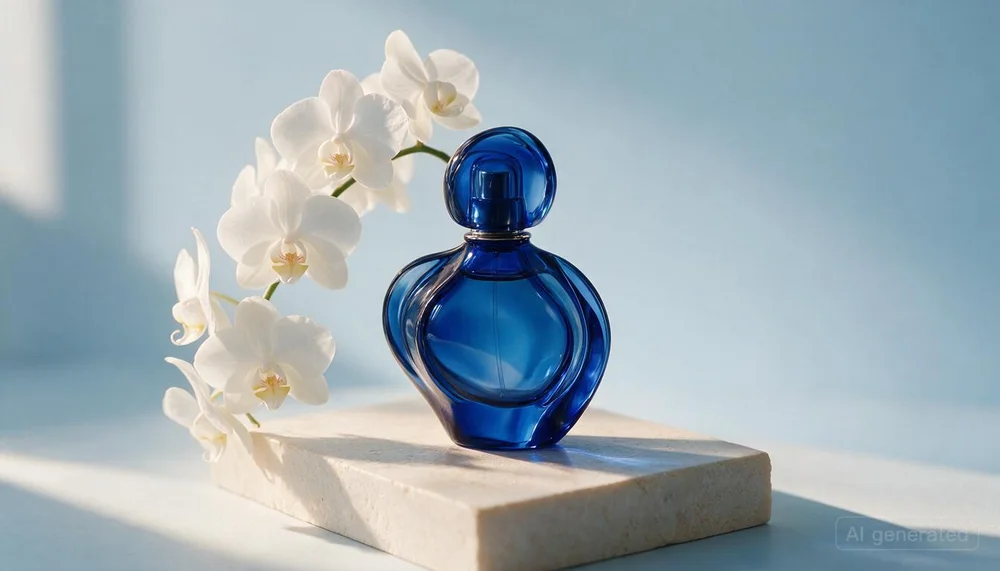
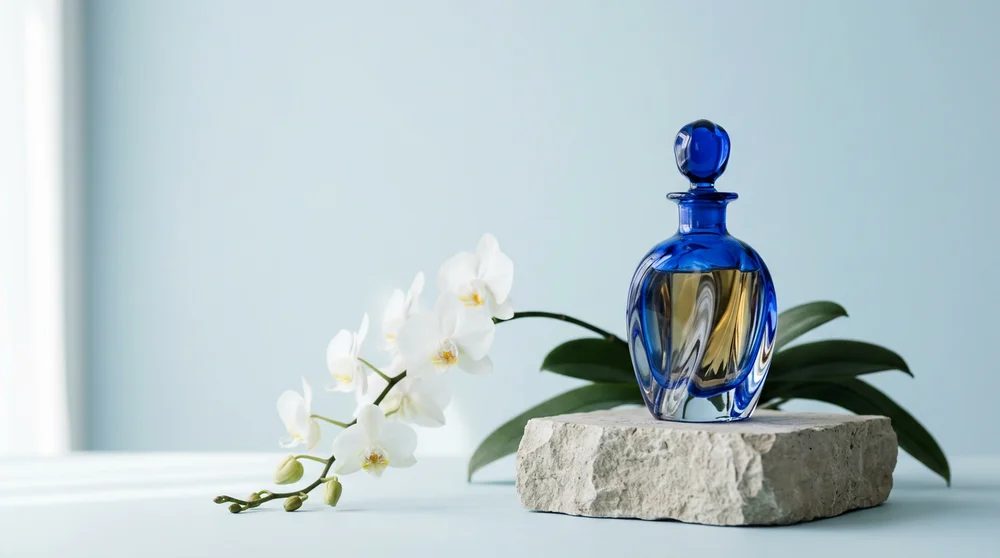
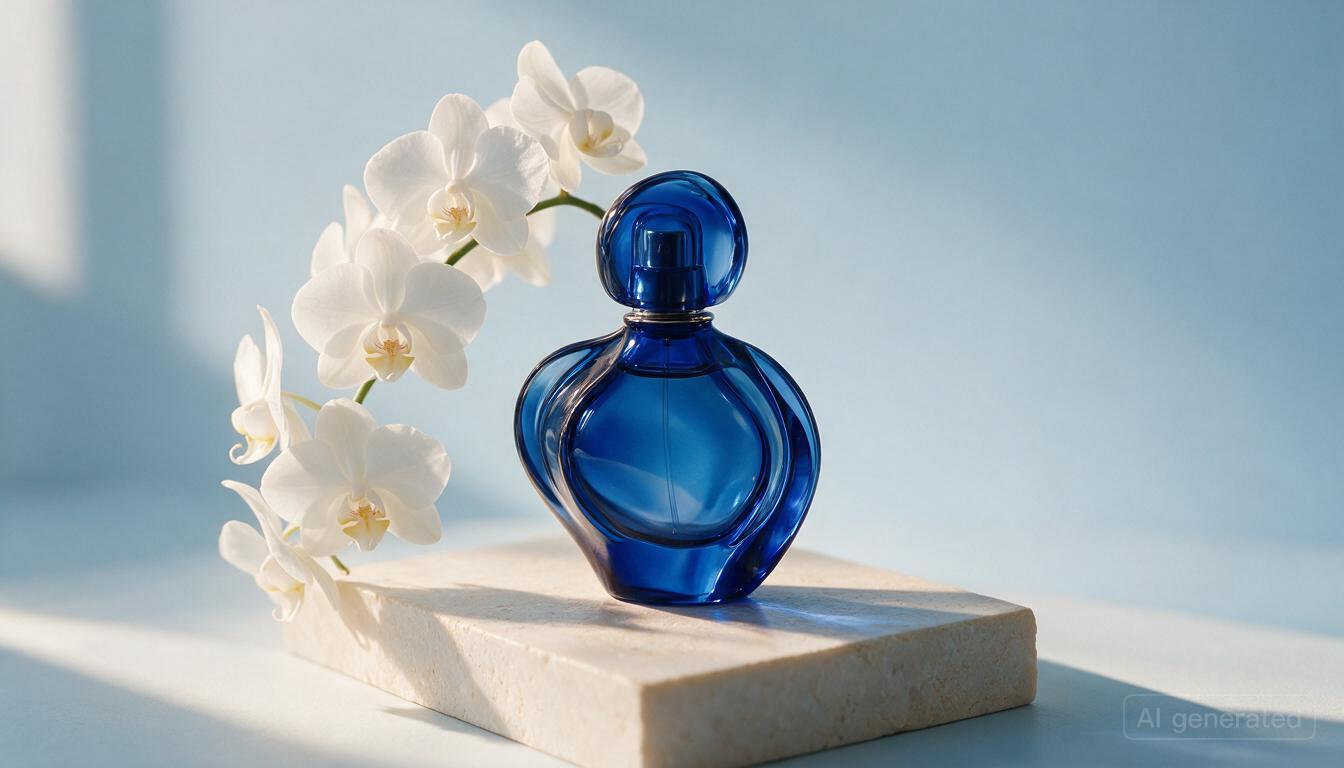
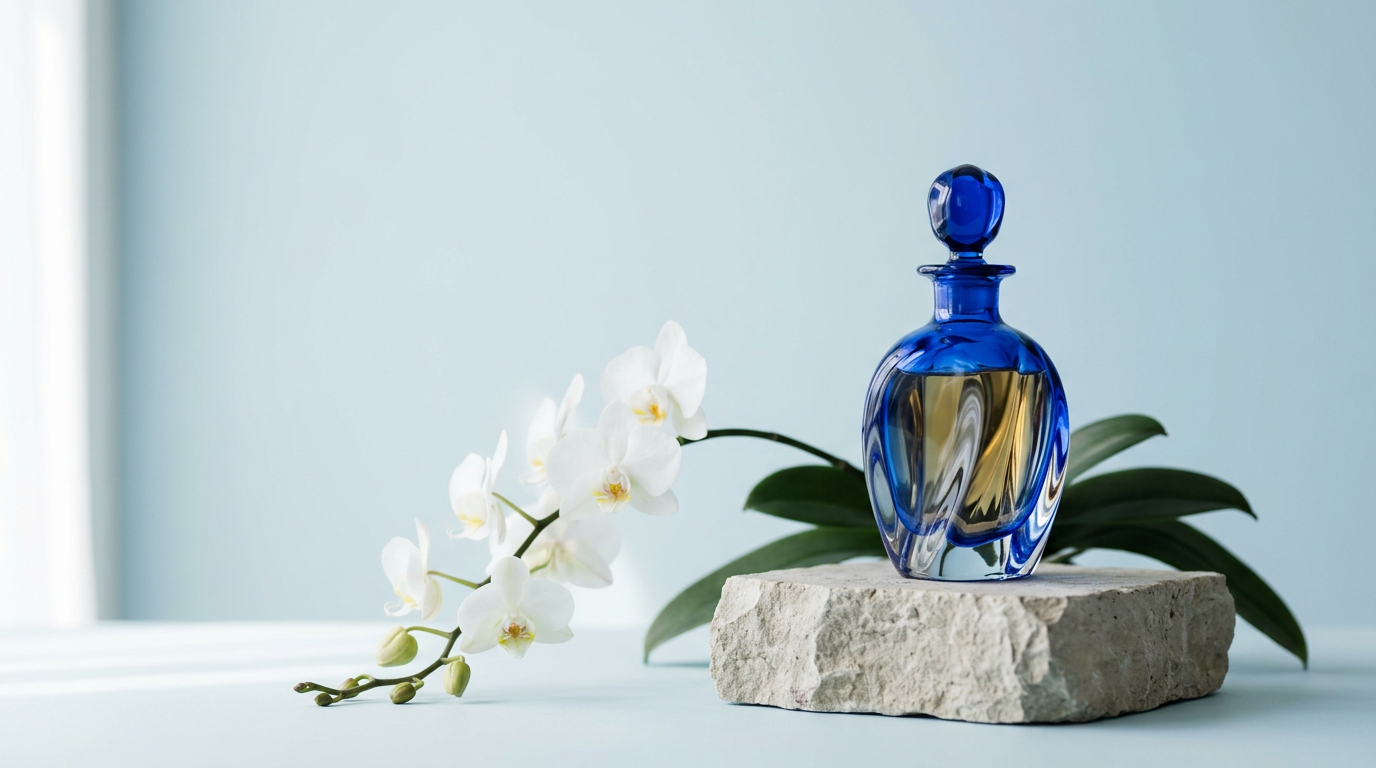
The first image adds an “AI generated” mark despite the no-text brief. Both outputs approximate the requested 16:9 shape: 1344 × 768 and 1376 × 768. Crop for an exact fit. Labels identify the models requested in chat; per-image model receipts were not retained. These are examples from one run, not a model ranking.
Keep working with the image you made
Reference the image by name and describe a specific change. For this revision, the request changed the bottle to amber glass and the background to warm ivory while keeping the orchids, plinth, framing, and lighting.
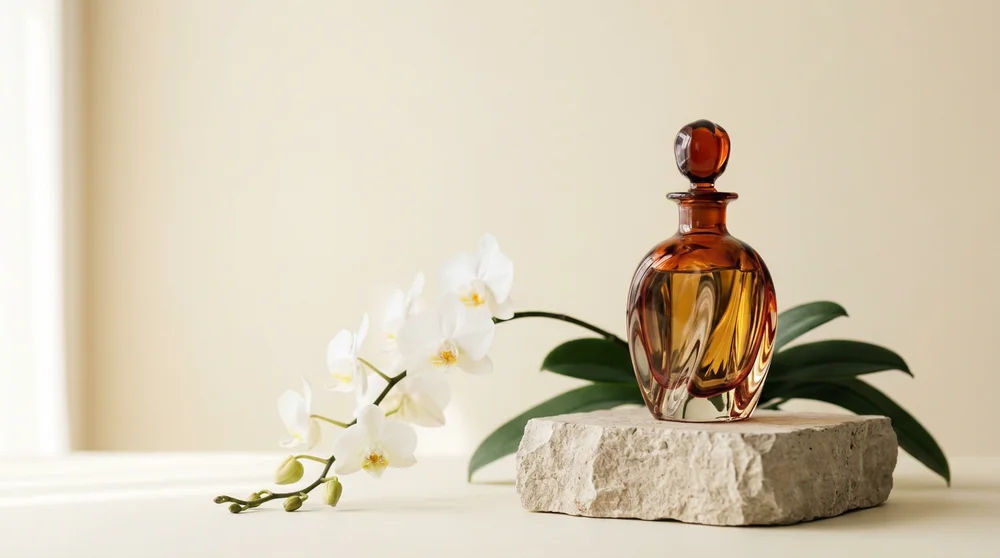
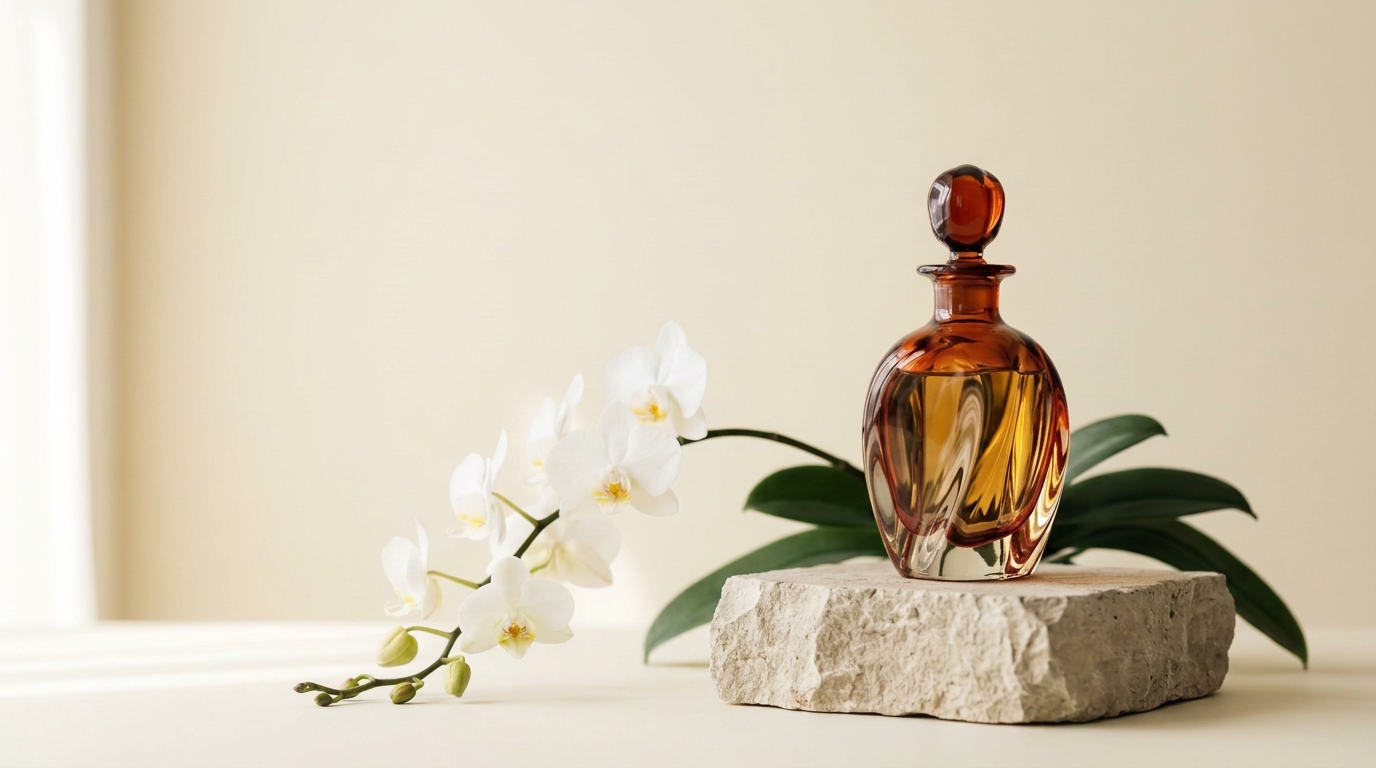
The same workflow works with an image you upload. State the details that matter, then compare the revision with your original. For precise brand work, inspect lettering and product geometry closely.
Give the image model a useful brief
- Name the subject and use. A website hero, product image, poster, and slide illustration need different compositions.
- Describe the visual direction. Include lighting, materials, background, palette, and where you need empty space for copy.
- Choose the model and generate. Use the Image tab, or ask OpenCraft to list suitable image models and their prices.
- Refine and download. Request a focused edit, check the result at its intended size, and download the PNG or requested JPEG.
For a campaign, follow the image with a short product video or use it in a marketing presentation.
Choose for your image, then compare the cost
The image-model directory shows current options and published prices. Check reference-image support for edits, output options for your format, and the billing unit before comparing costs.
Run the same prompt on two models when the visual choice matters. Keep the results under different filenames so you can compare them. Two images and a revision are three generations, even when they happen in one conversation.
Use a reference image when preserving an existing object matters. A text-only request describes a new scene; it does not carry the exact geometry or identity of a product you have never shown the model.
Start with this prompt
Adapt the subject, audience, and output to your project.
Use the complete prompt
Create a landscape 16:9 image: a sculptural cobalt-blue glass perfume bottle on a pale limestone plinth, one sweeping stem of white orchids, soft morning light from the left, pale blue studio background, generous negative space, luxury editorial product photography, no text or logos. Save it as perfume.png.
Frequently asked questions
Can I generate an image from text?
Yes. Describe the subject, composition, style, lighting, and intended format. Choose an image model in the composer, or ask OpenCraft to help compare the available models.
Can I edit an image I already have?
Yes. Upload it or reference a generated image from the conversation. Specify what should change and what should remain the same. Model capabilities differ, so choose an image model that accepts reference images.
Can I compare different image models?
Yes. Ask for the same brief on named image models and a separate file for each result. Each generation incurs its own cost. Compare the outputs at the size and crop you intend to use.
What file format do I get?
Generated images are delivered as PNG by default. You can also request JPEG. Dimensions and other output options depend on the selected model.
Will edits preserve every detail of my original?
An image model can change details beyond your requested edit. Compare the revision against the source, especially faces, product proportions, logos, and text, before using it.
How much does image generation cost?
Prices vary by model and settings. Some models charge per image and others use token-based billing. Check the image-model picker or model directory; a comparison or a revision adds another generation.